Thursday, 19 June 2014

LIght Speed MDM v3


Hi, my name is Dean and I'm part of EIS, working in the Technical Support team for over 3 years gaining training and experiences to support and manage schools networks across Kent.

Part of my day to day job is installing and maintaining LightSpeed MDM for schools who wish to manage their IPads this way. This Blog is just a introduction to the new MDM v3 which is due for release on July 1st 2014. When the product is released I will further investigate the pros and cons of the new version.


You may not be aware but LightSpeed are updating their platform to v3.

I haven’t yet had the chance to test and play around with the new platform but during my visit to IT14 I managed to get a closer look into the product from the LightSpeed stand. From my perspective the new version feels and looks modern, and features are now on one page rather than using tabs and pages to display different options.


The new platform uses Charts and graphs to display information about the MDM. For Example you can now view recently added Apps and recently enrolled devices.

According to LightSpeed the following are the main reasons why customers should upgrade:

Managed Distribution – V3 allows you to take advantage of Apple’s managed distribution program to seamlessly pass out and retrieve apps, as well as silently push apps to supervised Devices.

Smart Groups – You’ll automatically get two “smart” (Automatic and dynamic) groups with v3. Such as Teachers and students. This makes it easy to push apps and set Policies based on roles.

Dashboard – Get a snapshot view of your mobile deployment, including recently deployed apps and recently enrolled devices.

For EIS customers the migration will be completed by July 1st 2014. EIS are currently working with LightSpeed so you will not have to do anything. Your login will stay the same but the old MDM website will change from www.lsmdm.com to next.lsmdm.com

According to LightSpeed, v3 is fully supported for IOS7 so any bugs you may have come across hopefully will resolved with the new version.

Monday, 16 June 2014

EISNet v1.8 is out the door. Now for v1.9

Project Nessy is officially released and now being installed in schools. We will be working on an upgrade script so that existing v1.7 sites can be upgraded to v1.8 (providing there are no Windows XP devices). Once that is done, our attention starts to focus on EISNet v1.9

So what is the plan?

Our intention has always been to move to the .Net Framework for the entire EISNet product. We have successfully achieved this for all Client side tools in v1.8. We now need to start work on the bigger task of rewriting Management Studio. This is the primary focus for v1.9.

We have no time scale yet. We need to evaluate the task ahead in the coming months, but it will be released in 2015.

We are hoping to include some new features, which include;


  • Class/group based structure
  • Vastly improved tools for teachers to manage children and their devices
  • Improved importing of users directly from SIMS
  • Better package management and deployment
  • Improved feedback when completing all types of tasks
  • Jobs continue to run (for example, importing users) once Management Studio is closed
  • Ability to view whether a device is on-line and who is logged onto it.
These are just a few of the improvements we are aiming to put into v1.9, but it does depend on a number of factors.

Wednesday, 16 April 2014

Almost ready

Folder Redirection

EISNet has been improved in all areas as we have mentioned many times. However, one aspect that we have not discussed so far is folder redirection.

A common problem for EISNet users prior to v1.8 is the limitation of remote working and saving files to the desktop. For example, it has not been easy to allow users to work from home using their EISNet laptop. We implemented a homework user to get around the issue, but for v1.8 we have opted to complete re-invent the way users home and desktop folders are managed.

We have implemented folder redirection for many of the common user folders. A notable benefit of this is any user can now save files to the desktop without fear of having the files deleted when they logoff.

The users desktop folder as seen from the server

Previously in v1.7 and below, when a user logs in the Desktop would be created by our LoginScript tool. It looks for allocated software and whether that software is installed on the device. If it is, it creates the shortcut. When the user logs off, the profile, and more importantly, the desktop folder is deleted because it's stored locally on the PC or laptop. This meant, if a user had saved any files to the desktop, they would ultimately be deleted as soon as the user logs off.

In v1.8, the Desktop folder is now redirected to the users personal folder. When LoginScript runs, it now only deletes shortcuts it has previously created and ignores any other files.

In addition, we also redirect their documents, download, favourites, music pictures and videos folders.

Personal folders for a test user

This offers us the ability to allow users to work completely offline, as long as they are assigned a roaming profile. Offline Files are assigned to these folder which means Windows synchronises them at login and logoff.

Now that the desktop folder is held and used centrally it creates a problem where a user logs into two devices at the same time. The desktop folder is shared between the two devices, so if you create a text file on one, it will immediately appear on the other. This may seem a benefit, but actually it creates an issue with software shortcuts. When the 2nd PC logs in, Loginscript will delete any shortcuts it's previously created meaning the 1st devices desktop icons will be removed. Further more, the 2nd device will create shortcuts for software that the 1st does not have, resulting in blank unusable links.

We foresee this as being a significant issue for end users.

Restricting Duplicate Logins

As a result of this problem, EISNet v1.8 now stops users logging in at the same time on two different machines.


If a user attempts to login when are already using another device, a friendly message is shown and will return them to the login screen.

Introducing the Logoff Button

With the introduction of Windows 8.1 support to EISNet, we have evaluated where it will work for children of all ages. One particular issue in relation to Windows 8.1 is the inability to logoff the device easily.

A regular user would need to click on the Start Button, which then presents the All Apps view on EISNet. From there, the user would need to go to Metro, then click their Username, then select Sign Out. It seems simple when written in this blog, but a teacher trying to teach KS1 children how to do this is particularly challenging.

As a result, we have added a friendly Log out button for pupils of all ages.


The Log out button is a site wide option and can be turned off from within EISNet Management Studio.

Wednesday, 9 April 2014

See EISNet v1.8 at our IT14 exhibition

EISNet v1.8 will be officially released at our annual IT conference and exhibition in Ashford on June 12th 2014.

Come and see for yourself all the improvements and how it can improve your curriculum ICT network.

More information

Monday, 10 February 2014

Internet Favourites - Controlled by Staff

EISNet has always supported a form of managed favourites that allow staff to create internet shortcuts that appear for all pupils. However this was not ideal as it meant pupils could view only the favourites created by staff, and not their own. 

EISNet v1.8 includes a much improved internet favourites system for staff and pupils. 

Firstly, all staff and pupils can create their own shortcuts and it remains stored with them regardless of whether they are roaming or mandatory profiles. The important change we have implemented is a folder in everyone's favourites is called 'Shared'. Staff can create internet shortcut's and put them in the Shared folder. This is achieved by creating a favourite in the normal way using Internet Explorer.

Pupils also see this Shared folder, but they cannot edit the contents. 

This is a good method of sharing internet favourites for pupils during lessons.

Enabling packages for all users and the Package Deployment Overview

In previous version of EISNet it was not possible to Enable a package for all users. You could enable packages for Staff, Pupils and Managers (and any level below) but a generic, all levels approach was not possible.

Today we have added this as an option. Simply right clicking the Users node in the main EISNet structure now gives you the option to assign login messages and enable software for everyone.


Finally for today - quite possibly the most useful addition to package deployment we have added since EISNet v1.7 was released - the Package Deployment Overview. This tool, written by our colleague John Fermor, allows you to see which packages are deployed (or deploying) and their current state. It updates live, so there is no need to refresh the page.


Friday, 7 February 2014

The return of the login message

When coding on something complex, it is sometimes good to take a break and work on something else for a while. This helps avoid becoming stuck on a particular problem. This week I found myself in this exact position whilst working on EISNet profiles so I chose to work on something else.

A number of customers have requested a feature that did exist in EISNet before v1.7 which was the ability to do a login message, or a 'Message of the Day'. This is fairly simple to add in, but we don't like doing things by half. If we are going to put a feature in, it's got to be solid and dynamic that could work to as many requirements as possible.

Introducing Login Messages

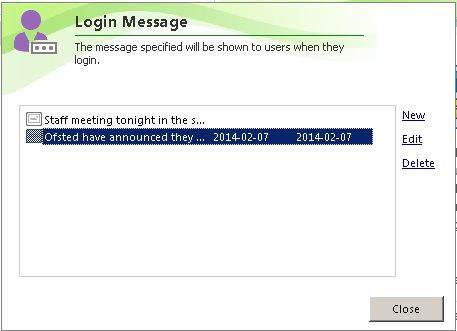
In EISNet Management Studio, we have added a option to show a login message for Pupils, Staff or computers, and at any possible level beneath. For example, you can set a login message to appear for a particular user, intake/class, key stage area or all Pupils (or staff) . Like wise, you can also set a login message for a particular computer, room or all devices.


You can set a Valid From date and a Valid To date, so that the messages expire when they are no longer relevant. In addition, you can choose whether to show the message when the user is logging in, or after they have logged in. On the screenshot below, you'll notice 'Show on wallpaper' this may be added at a later date, but probably won't be in the v1.8 initial release.


The first thing after logging in is a welcome message to the end user. When a staff member logs in, it shows their title (Mr/Mrs/Miss) and surname (for the techies reading this, this is actually the 'displayname' field in Active Directory). For pupils however, it simply shows their first name.


When a message is shown during login, it will show for four seconds before moving onto the next message (assuming there are more than one message to display). In this instance the login is halted whilst the message is displayed, but it will automatically continue once all the messages are read. In a later release, you will be able to customise the amount of time it waits, on a per message basis.


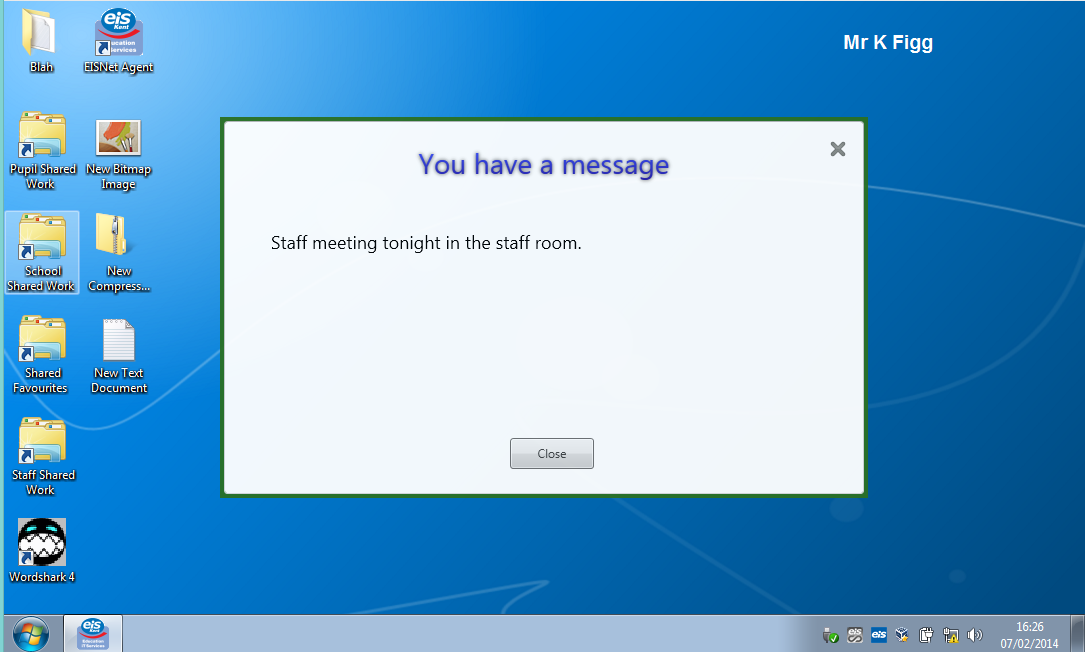
Finally, if a message is set to show after login, they will be shown the message in a familiar prompt style. The user can still use the device and work as normal whilst the message is displayed.


If there are more than one message to display, the window will show 'You have new messages' and also show a 'Previous' and 'Next' button to navigate.

Now that's done - back to Profiles.